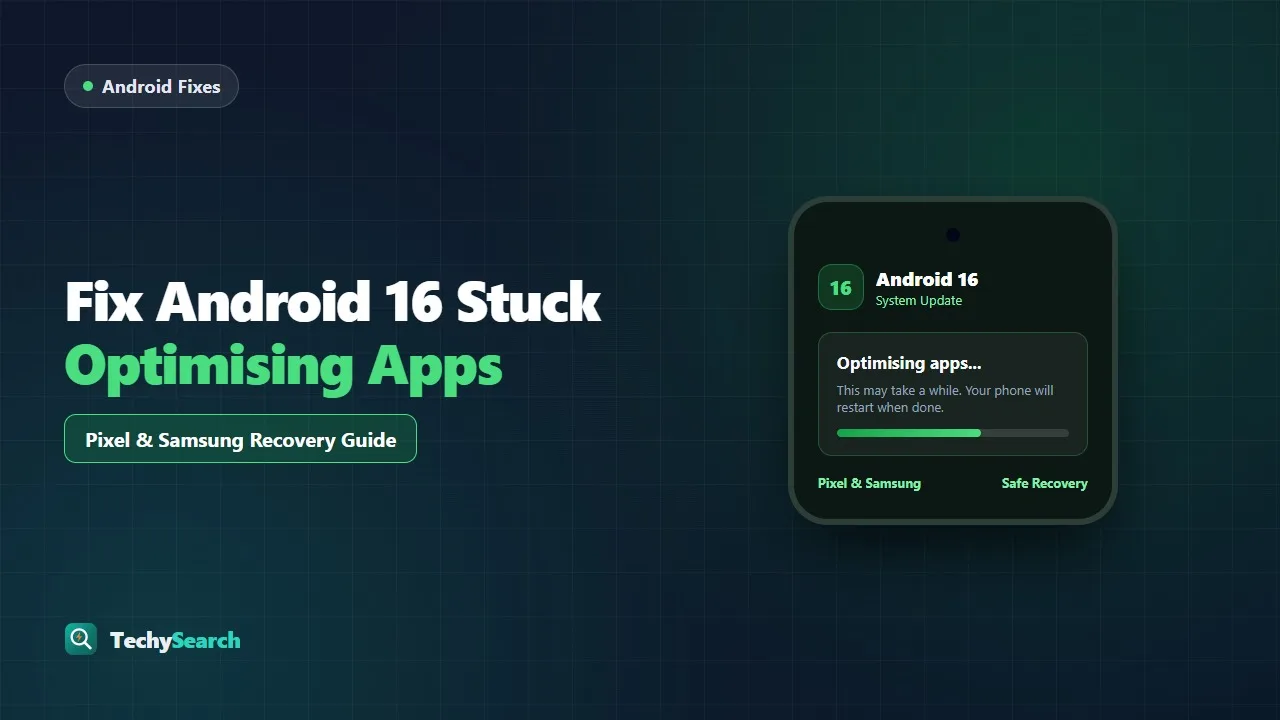
Your Pixel or Galaxy phone restarts for the Android 16 update, shows "Optimising apps" for the next several minutes, and then just sits there. When an android 16 update stuck optimising apps pixel samsung device stays past roughly 30 minutes on that screen, the longer you wait, the less likely it is to finish on its own.
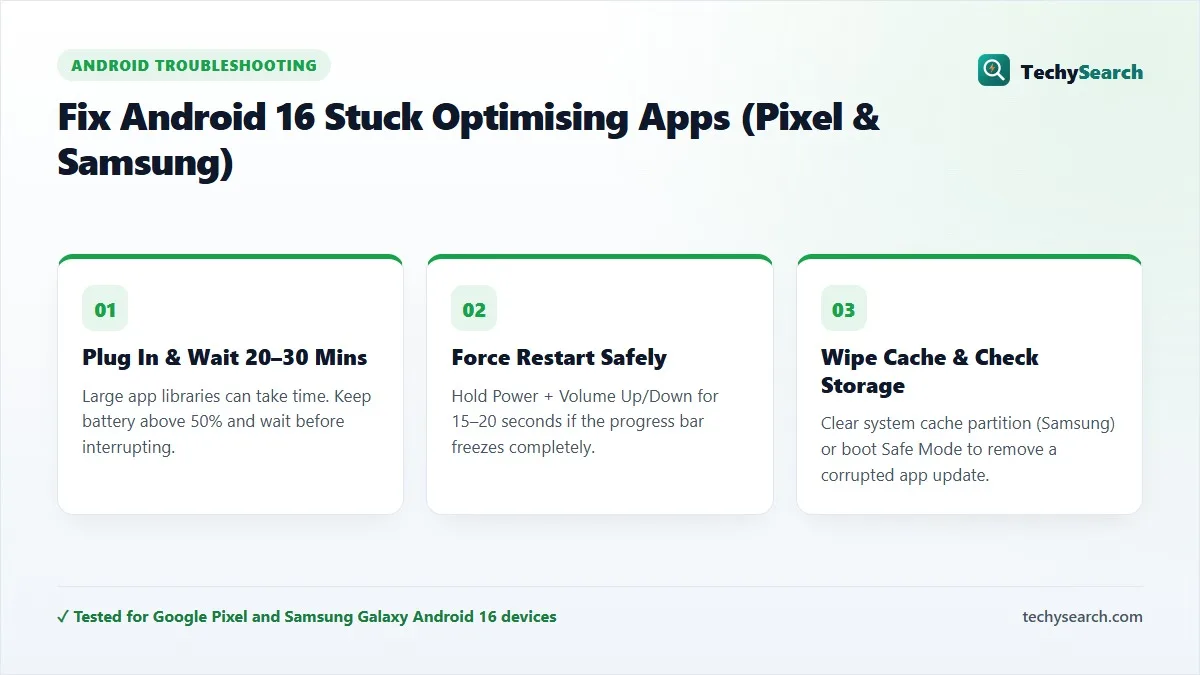
Wait at least 30 to 45 minutes with the charger connected, because a first-run optimisation of many apps is genuinely slow. If the progress bar or spinner has not moved after an hour, hold the power button for about ten seconds to force a restart. The update usually completes cleanly because the package was already installed.
This guide explains what that stage actually does, why it stalls on Pixel and Galaxy models, and the safe steps to fix it without losing data.
In This Guide
What is android 16 update stuck optimising apps pixel samsung?
"Optimising apps" is a real part of the Android update process, not an error message. After the new system image installs and the phone reboots, Android compiles each installed app for the new version. The system reads app code and converts parts of it into a form the processor runs faster. This step is why a phone with 120 apps takes noticeably longer than one with 30.
On a Pixel, this screen often appears right after the restart and shows a percentage or a spinner. On a Samsung Galaxy with One UI on top of Android 16, the wording may differ slightly, but the job is identical. Hundreds of apps, some large games included, must each be recompiled. The work is CPU-heavy and storage-heavy at the same time.
The stall you are reading about happens when that process stops advancing. Common signs include:
- The percentage or spinner stays frozen for more than 30 minutes.
- The phone is warm but not hot, fanless and silent.
- The screen stays on the same message after a second restart.
- Touch input responds slowly or not at all.
Three things usually cause a stall: a large app that fails to compile, low free storage, or a battery-saver setting cutting CPU speed mid-process. In rarer cases, a pending app update conflicts with the new framework during compilation.
Your phone is rebuilding a cache that the old version already had. Every later boot skips this step, which is why normal restarts take under a minute.
A stall is not the same as a boot loop. A boot loop restarts the phone repeatedly and shows the logo over and over. A stall stays on one screen. The fix for each is different, so check which one you have before doing anything.
Takeaway: This stage is normal maintenance, and most "stuck" cases are just slow rather than broken.
Why android 16 update stuck optimising apps pixel samsung matters
Waiting too long has a cost, and forcing a restart too early has one too. Understanding both helps you choose the right moment to act.
The first risk is a flat battery. Optimisation drains power quickly, and a phone that dies mid-compile can leave a half-written cache. Android usually recovers from that on the next boot, but you may see a second, shorter optimisation pass. Keep the phone plugged in for the whole process.
The second risk is storage. Compilation needs temporary space for each app’s compiled files. A phone sitting at under 5 GB free has less room to work with, and that is a common reason progress crawls or freezes.
The third risk is time-sensitive work. If you rely on the phone for two-factor codes, calls, or navigation, an hour lost on the sofa becomes a real problem. Knowing the expected duration lets you plan around it.
There is also a device-specific angle. Pixel owners typically get Android 16 first, so their phones carry the largest jump in framework changes. Samsung phones combine the new Android version with a full One UI refresh, which touches more system apps and adds compile work.
A phone that is warm to the touch during optimisation is behaving normally. A phone too hot to hold comfortably is a sign to move it somewhere cooler.
Finally, patience protects your data. A clean finish preserves everything. A badly timed force restart during an early install phase is the rare case where things can go wrong, which is why you only force a restart after the install has clearly finished and the phone sits on optimisation.
Think of it as a race between the compiler and your patience: the more apps already cached from earlier updates, the shorter the run. That is why a phone updated recently often clears the screen in minutes while one that skipped a release takes far longer.
Takeaway: Give the phone power, space, and a cool surface, and you remove most reasons for a stall.
Best practices
These steps keep the optimisation stage short and safe. Work through them in order rather than jumping to a factory reset, which is almost never needed.
One underrated habit is to note the exact time and percentage before you walk away. A photo of the screen timestamped on another device settles the "has it moved" question without guesswork and gives support staff a concrete record if you ever need to escalate.
Before you install the update
Free up space first. Delete old videos, clear cached downloads, and uninstall apps you have not opened in months. Aim for at least 10 GB of free storage. Charge the phone to 80% or higher and keep it on the charger during installation.
Turn off scheduled restarts temporarily. A phone that reboots on a timer mid-install creates confusion about which stage it reached. Also disable battery saver for the install, since it can throttle the CPU that does the compiling.
During the optimisation screen
Set the phone on a hard, cool surface, not a bed or cushion. Plug it in. Leave the screen alone. Give it a full hour before you conclude it is stuck, especially on a Samsung phone with many preinstalled apps.
Check progress honestly. If a percentage is shown, note it, wait ten minutes, and look again. A number that climbs even slowly means the process is alive. A spinner that never moves for an hour is different.
Tap the screen lightly once. If the interface responds, the system is still running and likely working in the background.
If it is genuinely stuck
Hold the power button for about ten seconds until the phone vibrates or the screen goes dark. Let it restart normally. Most phones finish the optimisation on this second attempt in a few minutes because most apps were already compiled.
If the phone returns to the same screen and stalls again, boot into recovery mode, which on Pixels is reached by holding power and volume down, and choose the option to wipe only the cache partition if your model offers it. On Samsung devices, the equivalent is clearing the cache partition from the recovery menu.
Takeaway: Space, power, and patience handle most cases; a force restart finishes the rest.
Common mistakes to avoid
Most problems in this situation come from acting too fast or too aggressively. These are the errors worth sidestepping.
Leaving the phone in a case on a soft surface traps heat and slows the processor, so pop the case off and set the device on a table. Likewise, avoid streaming music or taking calls on a second device tethered to the same phone, since shared bandwidth adds nothing and pulls attention from the task.
Screen protectors with heavy smudges or a dimmed display can hide a creeping percentage. Angle the phone under a lamp and look closely before deciding the bar is frozen, because some Pixel builds advance in small, quiet increments.
Force restarting in the first five minutes
A restart very early in the process throws away completed work and can start the compile over. Wait until the install is clearly finished and only the optimisation step remains.
Jumping straight to a factory reset
A reset erases your photos, messages, and app data. It should be the last option, and only after a force restart and a cache clear both fail. For most users, a reset is not needed at all.
Ignoring storage until it is full
Compiling needs room to write temporary files. Starting a major update with 1 GB free is asking for a slow or frozen process. Clear space before you tap install, not after.
Unplugging to "save battery"
The phone needs power more than it needs charge. Pulling the cable mid-compile risks the phone dying at the worst moment.
Confusing a stall with a boot loop
Repeated restarts and a looping logo mean a different fault than one frozen screen. Treating a boot loop with a long wait, or a stall with repeated forced restarts, wastes time and raises risk.
Assuming the phone is bricked
A phone that sits on one screen and responds to a long power press is not bricked. It is a software step that has not finished. Keep the language calm and the actions small.
Keep this comparison in mind before you act:
| Situation | Best action | Risk level |
|---|---|---|
| Under 30 minutes on the screen | Wait, plugged in | None |
| Over an hour, no progress | Force restart with power button | Low |
| Stalls again after restart | Clear cache partition | Low |
| Repeated restart loop | Recovery options, then support | Higher |
Takeaway: Small, reversible steps solve nearly every case; a reset should almost never be your first move.
FAQ
How long should "Optimising apps" take before I worry?
Expect 10 to 30 minutes for a typical phone. A device with many apps or a Samsung model with a full One UI layer can take closer to 45. Worry only after about an hour with no visible progress.
Will a force restart delete my photos or apps?
A power-button restart does not erase data. It only interrupts the compile step, which the phone repeats on the next boot. Your photos, messages, and installed apps stay in place.
Why does my Samsung phone take longer than my Pixel did?
Samsung ships more preinstalled apps and a larger custom interface on top of Android 16. That means more apps to compile, so the same stage runs longer on Galaxy hardware.
Can I use the phone while it optimises?
No. The screen holds the process, and touching it can slow things further. Leave the phone alone, plugged in, and check back in fifteen minutes.
Does clearing the cache partition wipe my data?
No. Clearing the cache partition removes temporary system files only. Your apps and personal files remain untouched, and the phone rebuilds the cache on the next boot.
Conclusion
A frozen optimisation screen looks alarming, but the fix is usually a long wait, a charger, and one patient restart. Free space before the update, keep the phone cool and powered during it, and force a restart only after an hour of no progress. Skip the factory reset unless a cache clear fails too. If your phone still stalls after those steps, contact Google or Samsung support with the model name and the time the screen froze, because that record helps them diagnose the specific app causing it.