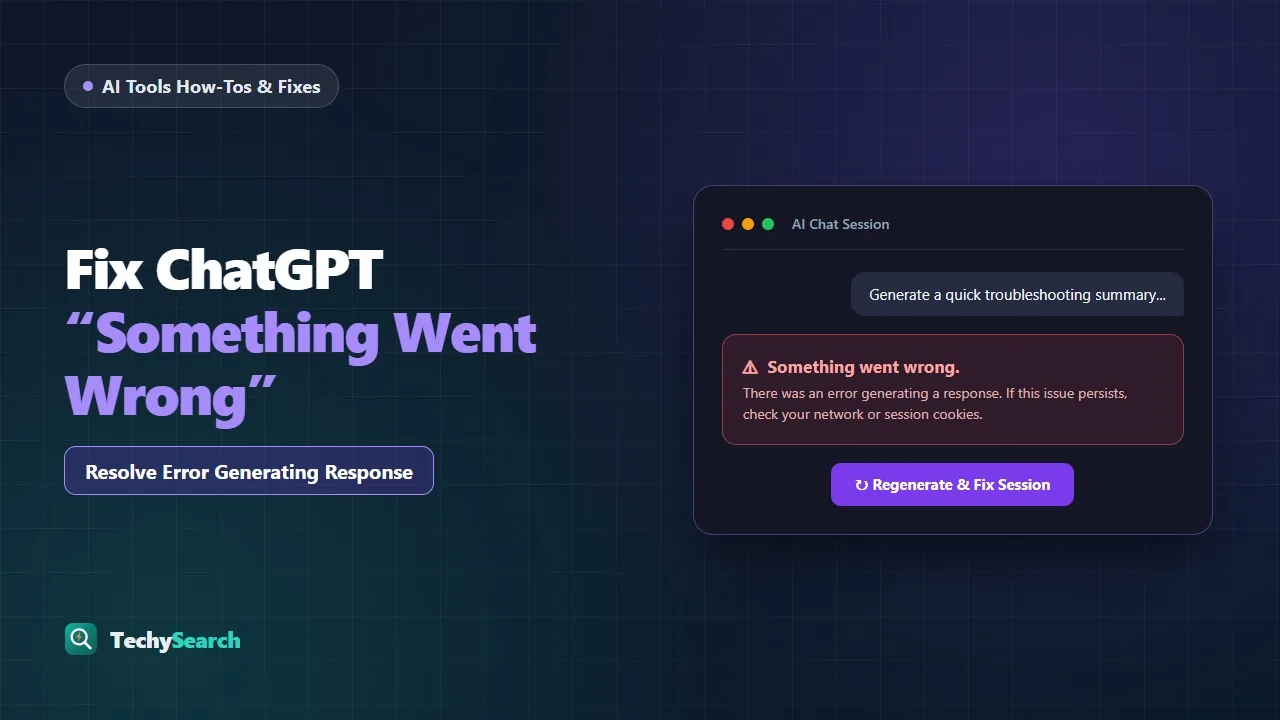
You type a prompt, hit send, and the reply is a red banner instead of an answer. A chatgpt something went wrong error generating response fix usually starts with three steps: reload the page, start a fresh chat, and check your connection before assuming the service is down. Most failures clear within a minute once you do those three things in order.
Reload the page or app first, because a stale session causes most of these errors. If the message returns, open a new chat so a long or corrupted conversation stops blocking replies. Then check your internet connection and ChatGPT’s official status page before changing any settings.
This guide explains what the error actually means, walks through fixes from fastest to most involved, and shows the habits that keep it from coming back. You will also learn which "fixes" waste time and which ones quietly work.
In This Guide
What is the chatgpt something went wrong error generating response fix?
"Something went wrong" is ChatGPT’s general-purpose failure notice. The wording is vague on purpose: OpenAI groups many different faults under one message, so the banner rarely points to a single cause. The job of a chatgpt something went wrong error generating response fix is to narrow down which fault you are hitting and clear it without breaking anything else.
The message can appear at several moments. Sometimes it flashes the instant you press send. Sometimes you see a partial answer that stops mid-sentence. It can also hit during a file upload, a picture request, or when you switch between the web app and the phone app.
What the error message actually means
Think of the banner as a check-engine light, not a diagnosis. Behind it sit at least five distinct problems:
- A dropped connection between your browser and OpenAI’s servers, often on weak Wi-Fi or a VPN.
- A server-side outage or overload, which shows up for everyone at once during busy periods.
- A conversation that has grown too heavy, especially one with many long attachments or months of history.
- A browser problem, such as an outdated version, a strict extension, or a full cache.
- An account or session issue, like an expired login that has not refreshed.
Each one needs a different response. A fresh chat does nothing for a dead router, and restarting your router does nothing for an OpenAI outage.
Because the banner is generic, the fastest route to a fix is elimination. Change one thing at a time and retest after each change, so you learn what actually worked.
Quick diagnosis: match the symptom to the cause
The timing of the error tells you a lot. If it appears the moment you hit send, suspect your connection. If it appears after 10 to 30 seconds of "thinking," suspect a heavy prompt or server load. If every chat fails while other websites load fine, suspect your account or OpenAI’s status.
Comparison: error patterns and likely causes
| Symptom | Likely cause | First thing to try |
|---|---|---|
| Error appears instantly on every message | Connection, VPN, or browser issue | Reload, then disable VPN or extensions |
| Error appears after a long wait | Heavy conversation or server load | New chat, shorter prompt |
| Error only on one existing chat | Conversation state is corrupted | Start fresh and copy over what matters |
| Error on all devices and networks | OpenAI outage or account problem | Check the status page and your login |
Notice how the first move differs for each row. Working from the symptom saves you from reinstalling apps or resetting passwords for a problem that a page refresh would have solved.
The key takeaway: treat "Something went wrong" as a category, not a verdict. Identify the pattern, then apply the fix that matches it.
Why chatgpt something went wrong error generating response fix matters
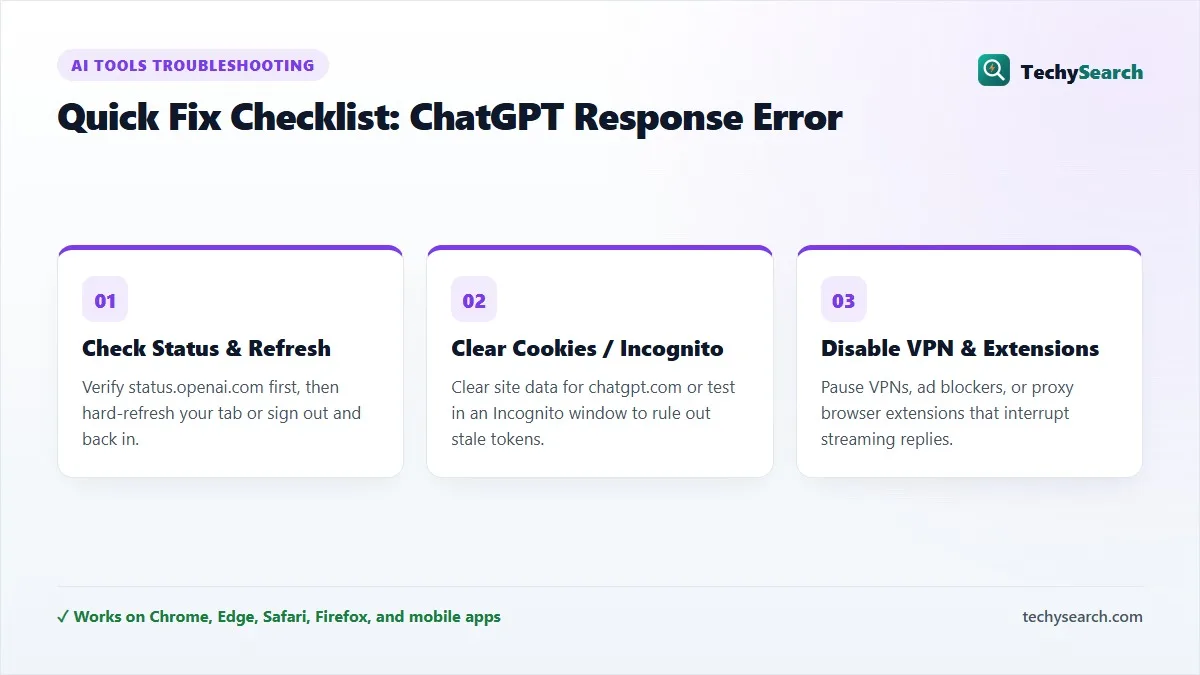
A broken reply is more than a small annoyance. Many people now draft emails, debug code, and check facts inside ChatGPT, so a failure lands right in the middle of real work. Knowing a reliable chatgpt something went wrong error generating response fix keeps a two-minute task from becoming a twenty-minute detour.
The cost of guessing at fixes
Random troubleshooting has its own price. Clearing all browser data logs you out of every site. Reinstalling the app throws away downloaded chats. Switching to a different account can strand your history and saved settings. Each guess costs time and sometimes data, and none of them guarantee the error was the kind you thought it was.
A structured approach avoids that waste. You start with the cheapest fix, the reload, and only escalate if the error persists. That way you rarely lose session state or app data for a problem that a refresh would have handled.
When the error signals something bigger
Occasionally the banner is a genuine warning rather than noise. Repeated failures on uploads may mean a file is too large or in a format the model cannot read. Errors that follow a sudden login prompt may point to a session expired for security reasons. A total outage, by contrast, is visible to everyone and needs no action from you.
Telling these cases apart matters because the wrong response makes things worse. Resetting your password during an OpenAI outage, for example, achieves nothing and adds confusion. Checking the official status page first confirms whether the problem is on your side or theirs.
OpenAI publishes service health at status.openai.com. A quick look there saves you from troubleshooting a problem that is already being fixed upstream.
The important point: a fast, orderly fix protects both your time and your data. Random resets protect neither.
Best practices
The fixes below run from least disruptive to most disruptive. Work down the list and stop as soon as replies come back.
Step 1: Refresh and retry
Press your browser’s reload button, or pull down to refresh on mobile. Then send the same prompt again. A surprising share of failures are one-off hiccups that clear on the second attempt, so this costs five seconds and often ends the problem on the spot.
Step 2: Start a new conversation
Open a fresh chat and paste in your prompt. Long threads, many attachments, and months of history can all strain a single conversation. If the new chat works, copy over the useful parts of the old one and archive it. This is also the step that clears most errors that only affect one specific chat.
Step 3: Check your connection and network path
Test another website to confirm the internet is up. If you use a VPN, turn it off briefly and retry, because some VPN routes trip rate limits or block the request. Switching from Wi-Fi to mobile data is a quick way to rule your home network in or out.
Step 4: Update the browser or app
Run your browser’s update check, or visit your device’s app store and install any pending update. Old browser versions can fail against new site code. If the error began right after an update, clearing the site’s cache and cookies for chatgpt.com alone is safer than clearing everything.
Step 5: Trim the prompt and its attachments
Very long messages, heavy files, or requests for a big block of output can time out before a reply forms. Split the task into two or three smaller prompts and upload one document at a time. Asking for shorter sections is often enough to get an answer where a giant request fails.
Step 6: Confirm the service is healthy
Check OpenAI’s status page and the official help channels. If there is a reported incident, waiting is the correct fix; nothing on your device will change the outcome. Most incidents resolve within minutes to a couple of hours.
If the error repeats across days, note the time, device, and prompt. Patterns like "only on uploads over 20 MB" turn a mystery into a fixable, specific issue.
The guiding principle: change one variable at a time, retest after each step, and escalate only as needed.
Common mistakes to avoid
Many people make the error last longer by reacting the wrong way. These are the traps worth skipping.
Resetting everything at once
Clearing all browser data, reinstalling the app, and resetting your password in one go feels thorough. It also leaves you unsure which change mattered, and it signs you out of every service you use. Do one thing, test, then move on.
Blaming the service before checking your own side
During busy periods, server load is a real factor. On a quiet day, most errors trace back to local connections or browser state. Check your network and browser first, then look at the status page. Guessing at the cause usually doubles the time to a fix.
Ignoring the conversation itself
A single bloated chat causes repeated failures that look like a service problem. If every new chat works but one old thread fails, the thread is the issue. Copy the content you need elsewhere and start over rather than fighting a conversation that will not stabilize.
Treating the error as a security incident
A routine "Something went wrong" message does not mean your account was hacked or your data leaked. It is a generic failure notice. If you also see unusual login alerts or unexpected account changes, handle those through official settings; the error banner alone does not signal a breach.
Retrying the same failing prompt forever
Send, fail, send, fail, send, fail produces nothing. After two failures, change something: shorten the prompt, drop an attachment, or start a new chat. Repetition without variation only wastes time.
Missing real account limits
Hitting a plan limit or an upload size cap can surface through the same banner. If you are on a free plan or in a peak hour, the model may simply be unavailable for a short window. Checking your plan details and the size of your files explains some "random" failures that are actually boundaries.
Be wary of instructions that ask for your login details or a browser extension to "fix" ChatGPT. Official fixes never require handing your credentials to a third party.
The takeaway: thoughtful, single-step troubleshooting beats a scattershot reset every time.
FAQ
How long does the error usually last?
Most cases clear within a minute or two, especially after a refresh or a new chat. If a logged incident is active on OpenAI’s status page, expect minutes to a couple of hours depending on the issue. Errors tied to a single heavy chat last until you start a new one.
Does the error mean I lost my conversation or data?
No. A failed reply does not erase the chat or your account history. If one conversation keeps failing, the thread can be opened but not extended; copy the important text into a new chat to keep working. Your data stays in place either way.
Will paying for a plan stop the error?
Not entirely. A paid plan can reduce rate-limit failures and offers access during busy periods, but network issues, browser state, and OpenAI outages affect every tier. Troubleshooting steps still apply whether you use the free or paid version.
Should I switch to a different model or device when it happens?
It can help as a diagnostic. If the same prompt fails on one model but works on another, you may be hitting a limit on that model rather than a general outage. Trying a second device tells you whether the issue is local to your browser or app.
When should I contact support instead of troubleshooting?
Contact OpenAI support if the error persists across devices, networks, and fresh chats for more than a day, or if you see billing or account problems alongside it. Include the time, device, and exact steps that trigger the failure to speed things up.
Is the error ever caused by my internet provider?
Yes, sometimes. Some networks block or throttle connections to certain sites, and VPNs can complicate this further. If every other site works but ChatGPT consistently fails on one network, test mobile data to confirm the cause.
Conclusion
The banner looks alarming, but it rarely signals a serious problem. Refresh the page, start a new chat, then check your connection and OpenAI’s status page, and the vast majority of failures resolve within minutes. The chatgpt something went wrong error generating response fix is really a short checklist applied in order, not a complicated repair. Skip the urge to wipe every setting, change one thing at a time, and keep the latest working chat handy as your fallback. Next time the red message appears, run the checklist before you touch anything else, and note what worked so the next fix takes seconds instead of minutes.