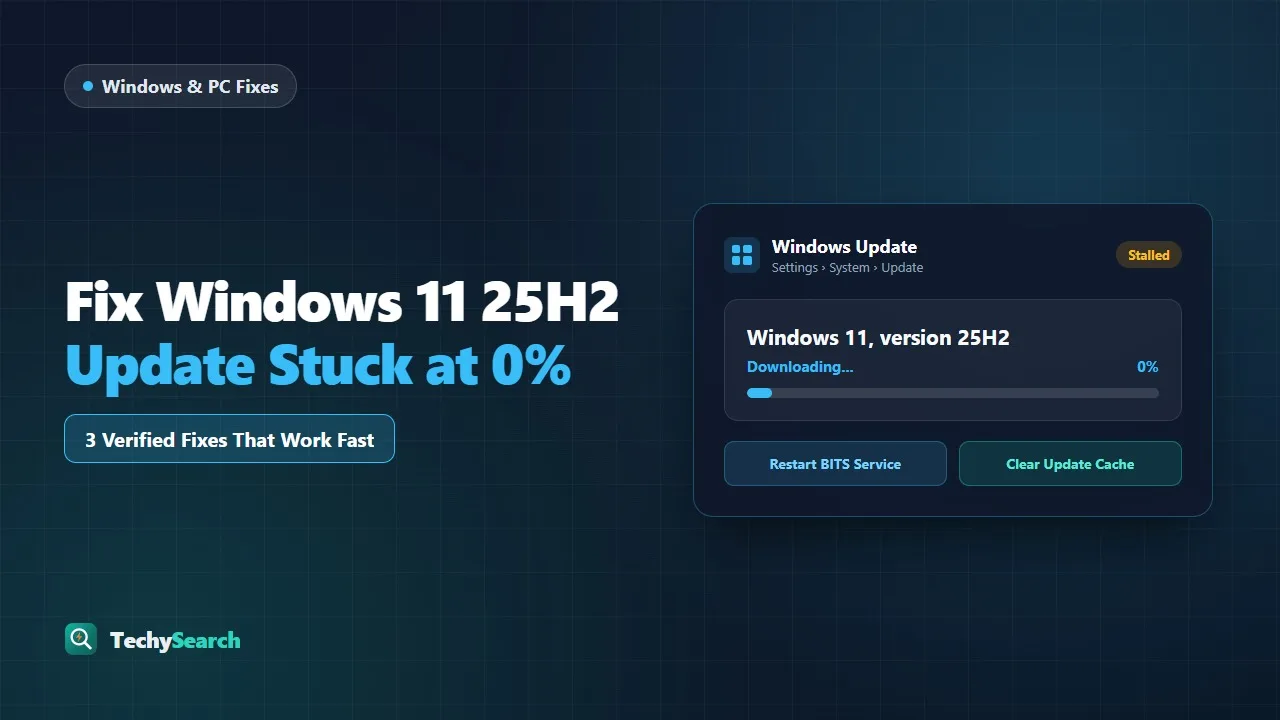
A frozen progress bar is one of the most frustrating sights during an upgrade. You click "Download and install," the Windows 11 25H2 update stuck at 0 percent sits there for an hour, and nothing moves. The same screen appears after every restart, so you start wondering if the update will ever finish.
The 0 percent stall usually means Windows cannot reach the update servers, or a cached update file is blocking the download. Restart the Windows Update service, run the built-in troubleshooter, and clear the SoftwareDistribution folder. Those three steps resolve most stalled downloads within minutes.
This guide explains what causes the stall, why fixing it properly matters, and which habits prevent it from returning. You will also get a short FAQ for the questions people ask most.
In This Guide
What is windows 11 25h2 update stuck at 0 percent?
The phrase describes a specific failure point. Windows Update shows the 25H2 feature update at 0 percent downloaded, and the number never changes, even overnight. The update has not truly begun, which is why waiting rarely helps.
Three conditions typically produce this state:
- The download never starts. Windows cannot open a connection to Microsoft’s update servers, so the counter has nothing to count.
- A cached file is corrupted. A partially written package sits in the update cache, and every retry trips over the same broken file.
- A service has stopped. Windows Update depends on the Background Intelligent Transfer Service (BITS) and the Windows Update service. If either one stalls, the progress bar freezes with it.
How to tell a stall from a slow download
A slow download still moves. Check the percentage twice, ten minutes apart; if it ticks from 0 to 3 percent, your connection is simply busy. A true stall stays exactly at 0 no matter how long you wait, and the "Downloading" label never changes.
The three fixes that clear most 0 percent stalls
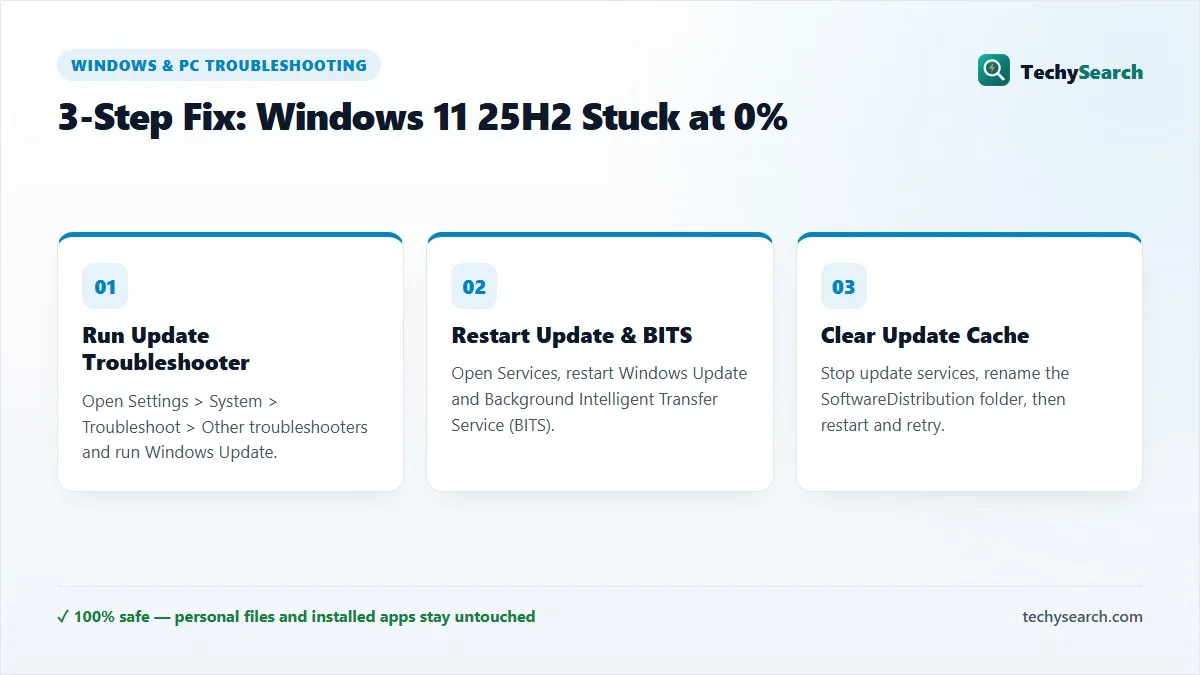
- Run the Windows Update troubleshooter. Open Settings > System > Troubleshoot > Other troubleshooters, then run Windows Update. It restarts stopped services and repairs common configuration errors automatically.
- Restart the update services. Open Services, find Windows Update and Background Intelligent Transfer Service, and restart both. Set each to Automatic if it was disabled.
- Clear the update cache. Stop the two services, rename the folder
C:\Windows\SoftwareDistributiontoSoftwareDistribution.old, then start the services again. Windows rebuilds the folder with fresh files on the next check.
The SoftwareDistribution folder holds every downloaded update file. A partial 25H2 package left behind by an interrupted download is the single most common reason the counter never leaves zero.
After clearing the cache, return to Settings > Windows Update and select Check for updates again. The 25H2 package will download from scratch.
Why windows 11 25h2 update stuck at 0 percent matters
A stalled feature update is more than an annoyance. It leaves your PC in an uncertain state: not upgraded, not failed, just waiting. That limbo has real consequences.
Security coverage lags. Feature updates carry changes that support new security features. Staying on the old build keeps your machine working, but you miss improvements that arrive with 25H2.
The retry cycle strains the system. Windows re-attempts the download on its own schedule. Each attempt writes temporary files, scans system components, and can slow boot times. A machine stuck for a week often feels sluggish for reasons the user never connects to the update.
Some users lose hours to guesswork. Restarting repeatedly, disabling antivirus, or resetting the PC all feel like sensible moves. Each one costs time and none of them touches the actual cause.
A 0 percent download is safe to interrupt. Once the screen says "Installing" with a real percentage, let it finish. Cutting power mid-install is how people end up repairing Windows instead of updating it.
Who feels the impact most
The stall hits office laptops and shared family PCs hardest, because a failed overnight update means another day on an older build. Gamers notice it too when background retries compete with the network. Home users on a single machine mostly lose time and patience.
What the stall does not mean
A 0 percent reading does not mean your hardware is unsupported. It also does not mean Microsoft has pulled the update. In the vast majority of cases, the cause sits in your local update pipeline, which is why the fixes above work so often.
The practical takeaway: treat the freeze as a local plumbing problem, not a sign that your PC cannot run 25H2.
Best practices
Good habits keep the update pipeline clean and make a future feature update far less likely to hang at zero. None of these steps takes more than a few minutes.
Prepare before you start the update
- Free up disk space. Aim for at least 20 GB free on the system drive. A cramped drive gives Windows no room to stage the download.
- Plug in the power cable. Laptops on battery can throttle background downloads, which slows the process to a crawl.
- Use a wired connection if you can. Ethernet avoids the Wi-Fi drops that interrupt large downloads midway.
- Pause other heavy downloads. Streaming, cloud backups, and game updates all compete for the same bandwidth.
Keep the update services healthy
Set Windows Update and BITS to start automatically. Check once a month via the Services app; a misconfigured third-party optimizer can quietly disable them. If you use a cleanup tool, confirm it does not touch the SoftwareDistribution folder while an update is pending.
Time the update sensibly
Start a feature update when you will not need the PC for an hour. A 25H2 download plus install commonly runs 30 to 60 minutes on a typical connection. Starting it at 11 p.m. before a workday invites the exact interruption you are trying to avoid.
If the update has been stuck for less than 30 minutes, give it one more cycle. Manual fixes work best when the automatic attempt has clearly failed, not while it is still trying.
Record what you change
Write down any service you stop, folder you rename, or setting you alter. If the update still fails, that short list tells a support technician exactly where to look. It also lets you undo a change that made things worse.
The takeaway is simple: a prepared PC with healthy services and free disk space rarely stalls. Most of the work happens before you ever click "Download and install."
Common mistakes to avoid
Fixes fail when people skip steps or apply the wrong one. These are the errors that turn a ten-minute repair into a lost afternoon.
Restarting before the download completes
Windows 11 handles a download restart poorly. If you reboot mid-download, the partial package can remain in the cache and block the next attempt. Wait for the percentage to move or the error to appear before restarting.
Deleting the update cache with services still running
Renaming SoftwareDistribution while Windows Update is active corrupts the folder’s state. You must stop the Windows Update and BITS services first. Skipping that step is why some people report the cache fix "did nothing."
Disabling your antivirus as a first move
Turning off security software to coax an update along exposes your PC for no good reason. Try the troubleshooter and cache reset first. Only test with antivirus paused if every other step fails, and re-enable it immediately afterward.
Ignoring the actual error code
Windows usually logs a code alongside a failed update, such as 0x80070002 or 0x8024402c. Each code points to a different cause. Look yours up before applying random fixes; the specific error often leads straight to the real problem.
Assuming a reset is required
Many users jump to resetting Windows when an update stalls. That erases apps and settings to fix a problem the cache reset solves in minutes. Keep the reset as a last resort after every documented fix has failed.
Windows will start a download it cannot finish. If free space drops below the staging requirement mid-download, the counter can freeze at zero with no clear message. Check your free space before blaming the network.
Forgetting to check for pending restarts
A pending restart from an earlier update blocks new downloads. Open Settings > Windows Update and finish any "Restart required" prompt before starting 25H2.
The takeaway: work in order, read the error code, and leave drastic measures for last. Each mistake above has a cheap correction, but only if you spot it early.
FAQ
How long should I wait before treating 0 percent as a real stall?
Give it 30 minutes. A busy connection can hold at zero while it negotiates the download. If the percentage has not moved at all after half an hour, start with the troubleshooter, then restart the services.
Does clearing the update cache delete my files or apps?
No. The SoftwareDistribution folder holds only downloaded update packages, not personal files, programs, or settings. Renaming it is safe, and Windows rebuilds the folder automatically.
Can I install 25H2 manually if the update stays stuck?
Yes. Microsoft offers the Installation Assistant and the media creation tool on its official download page. Both bypass Windows Update and can complete the upgrade when the normal channel keeps failing.
Will fixing this cost me anything?
No. Every step here uses tools built into Windows, and Microsoft does not charge for feature updates. Paid repair services are only worth considering if the PC shows hardware faults alongside the stall.
Is it safe to keep using the PC while it sits at 0 percent?
Yes, for normal work. Downloads run in the background, so browsing and documents are fine. Avoid shutting down or resetting the machine mid-process, and finish a pending update before you travel.
Conclusion
The windows 11 25h2 update stuck at 0 percent almost always traces back to a local cause: a blocked connection, a stopped service, or a corrupted download cache. Fix those three in order, and the progress bar usually starts moving within minutes. Prepare the PC beforehand, keep the update services healthy, and you will rarely see this screen again.
Start with the troubleshooter, restart Windows Update and BITS, then reset the SoftwareDistribution folder if the number still refuses to move. If the stall survives all three, note any error code and try the official Installation Assistant before considering anything more drastic.