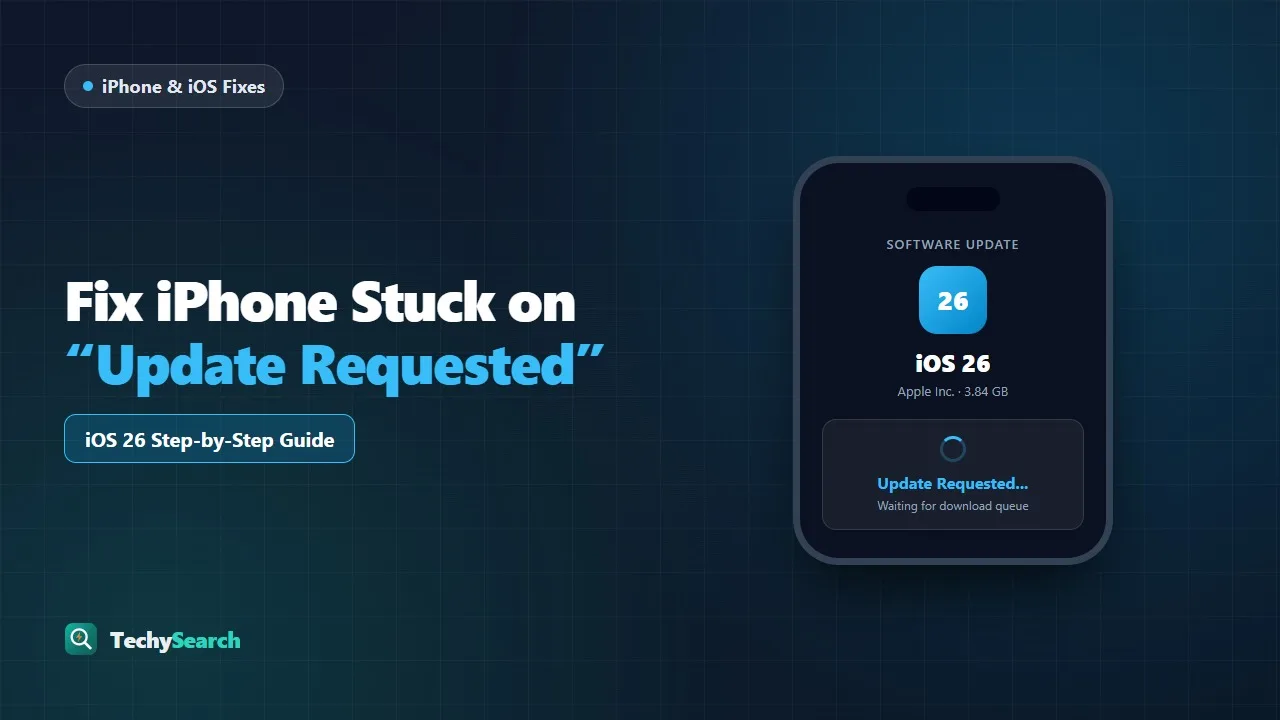
You tap "Update Requested" on your iPhone, expect the new iOS 26 build to arrive in minutes, and then nothing happens. An hour passes, the Settings screen still shows the same message, and you start wondering whether the update is actually downloading at all. The problem, which many people describe as iphone stuck on update requested ios 26, is usually a stalled request rather than a broken phone.
"Update Requested" means the request reached Apple’s servers but the download has not started on your device. Press and hold the notification, tap the option to delete it, and request the update again from Settings > General > Software Update. If that fails, restart the phone, free up storage, and move to a strong Wi-Fi connection.
This article explains what the message means, why the request stalls, and which fixes work in order. By the end you will know how to get iOS 26 installed without losing data.
In This Guide
What is iphone stuck on update requested ios 26?
"Update Requested" is the label your iPhone shows after you confirm an update but before the download begins. The status sits between "your request was sent" and "files are arriving." When it stays on screen for hours, the handshake between your phone and Apple’s update servers has stalled.
The sequence normally looks like this:
- You tap Download and Install and agree to the terms.
- The iPhone checks storage space and asks Apple’s servers to serve the update.
- Apple returns the download package and your phone begins fetching it.
- The screen changes to a progress bar, then "Preparing Update."
A stall usually happens at step two or three. Your phone has asked, Apple has queued the request, and the response never arrives. The message persists because iOS has nothing new to report.
Think of it as a confirmation receipt rather than a download. Your phone has proof the request went out, but no package has come back yet. Until that changes, the label stays frozen on screen.
Why the message lingers
Several conditions can freeze the request. A weak Wi-Fi signal drops the handshake partway through. A VPN or private relay interferes with the connection to Apple’s content servers. Low storage stops the download before it starts. In some cases, an interrupted request simply sits in the queue until you clear it.
The difference between "Update Requested" and a stuck progress bar
These are not the same problem. A progress bar that freezes has started downloading and can often be resumed. "Update Requested" means the download has not begun at all. That is why restarting the download request usually works when other tricks do not.
The message is a status, not an error. Your phone is waiting on the network, not failing internally, so most fixes focus on connectivity and storage rather than repair.
The good news: this is a rare and recoverable state. Apple designed the update flow so a pending request can be cancelled and restarted from the same screen. Takeaway: treat "Update Requested" as a pending download, not a broken device.
Why iphone stuck on update requested ios 26 matters
A stalled update is more than an annoyance. iOS 26 brings security patches and fixes for known vulnerabilities. Every day you wait, your phone runs an older build that may lack those protections. For anyone handling work email, banking apps, or client data, that gap matters.
There are practical costs too. The "1 update available" badge on the Settings icon stays visible, and reminders keep interrupting your day. Some people assume the update failed and start searching for risky workarounds, which introduces bigger problems than the original stall.
A stalled request also drains the battery faster than usual. The phone keeps polling Apple’s servers in the background, and that repeated checking eats power even while the screen is off. On an older device with a worn battery, a day of waiting can leave you reaching for a charger by mid-afternoon.
Leftover update files are another hidden cost. A partial request can occupy a gigabyte or more of storage that never shows up as an app, shrinking the space available for photos and downloads until you clear it.
When the delay becomes a real risk
If the pending request blocks other functions, the stakes rise. A half-requested update can occasionally interfere with app installs that need the newest system frameworks. Developers testing against iOS 26 will find their test devices unusable until the install completes.
Timing and network considerations
Most stalls clear within a few minutes once you fix the underlying cause. Apple’s update servers experience heavy load right after a major release. If iOS 26 launched days ago and you are updating at peak evening hours, the server may simply be slow to respond. Trying again at a quieter time, such as early morning, often resolves it.
| Situation | Typical wait | Fix priority |
|---|---|---|
| Requested minutes ago | Under 15 minutes | Wait, then retry |
| Stuck for hours | No progress | Restart and clear request |
| Stuck for a day or more | Persistent stall | Reset network settings |
| Fails after several retries | Repeated stall | Reinstall via computer |
The table shows that patience works for a fresh request, but longer stalls need action.
Do not keep tapping the update button repeatedly. Multiple pending requests can confuse the queue and make the stall harder to clear.
Takeaway: treat a stalled iOS 26 update as a security and convenience issue, and resolve it within a day or two rather than waiting indefinitely.
Best practices
These steps work best in order. Try each one fully before moving to the next.
Keep the phone plugged in throughout. Updates download and verify more reliably on power, and iOS sometimes waits for a charger before it begins fetching large packages. A phone at thirty percent battery may hold the request indefinitely.
Move physically closer to the router, or switch to a 5 GHz band if yours broadcasts two networks. Distance and interference slow the handshake that starts the download, and a stronger signal alone clears many stalls.
Step 1: Clear the pending request
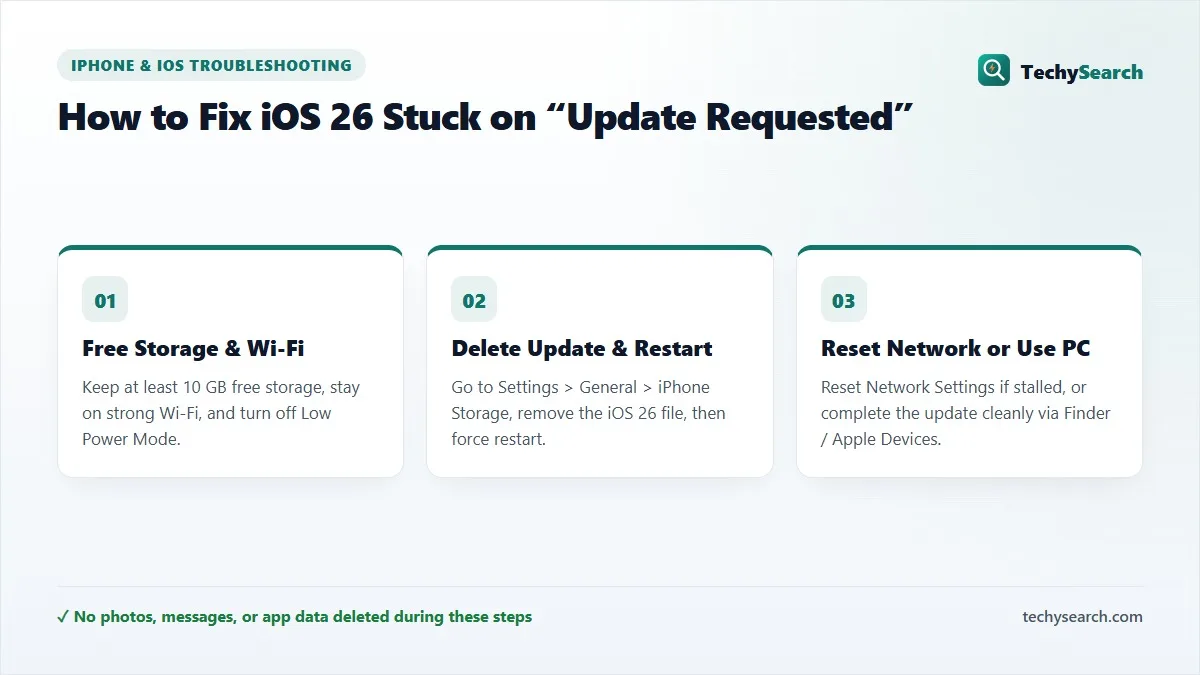
Press and hold the "Update Requested" notification, then tap the option to delete or cancel it. Return to Settings > General > Software Update and request the update again. This resets the queue and solves the stall for many users.
Step 2: Confirm your connection
Connect to a stable Wi-Fi network rather than cellular. Turn off any VPN, and check whether iCloud Private Relay is enabled. Some content servers block or throttle relayed traffic, which stalls downloads. Restart your router if other devices also seem slow.
Step 3: Free up storage
iOS 26 needs several gigabytes of free space before it downloads. Check Settings > General > iPhone Storage. Delete old videos, large apps you no longer open, and old message attachments. Aim to leave headroom beyond the stated requirement.
Step 4: Restart and retry
A standard restart clears cached network states. Press and hold the side button with either volume button, then slide to power off. Wait thirty seconds, power on, and request the update again.
Schedule the update for overnight while charging. The phone installs automatically when idle, which avoids interruptions from calls and app activity.
Step 5: Fall back to a computer
If the phone keeps stalling, connect it to a Mac or PC and update through Finder or the Apple Devices app. The computer manages the download itself and pushes the installation to the phone. Back up first, because this route can occasionally require a restore.
Takeaway: cancel, reconnect, free space, restart, then use a computer. That sequence covers nearly every stall.
Common mistakes to avoid
Most failed fixes come from a handful of avoidable errors. Knowing them saves time and prevents new problems.
Another frequent error is clearing the request and then immediately re-requesting the update over and over in quick succession. Each retry adds another entry to the queue, and the phone can end up waiting on duplicates that never resolve. Give a single retry a full ten minutes to move before you try again.
People also forget that Low Power Mode can pause background downloads. With the battery icon showing yellow, iOS may hold the request until you plug in or disable the setting. Charge past fifty percent and turn Low Power Mode off before you request the update.
Mistake: erasing the phone too early
A full erase and restore is the last resort, not the first fix. Many people erase their device, restore from backup, and land in the same stall because the network issue never changed. Try every lighter fix first.
Mistake: updating on a weak or metered connection
A fluctuating signal drops the request repeatedly. Public Wi-Fi with a login screen is especially unreliable because the handshake fails partway. Use a home network or a computer with a wired connection.
Mistake: ignoring storage warnings
The update request can sit pending when free space is borderline. iOS waits for room rather than failing outright. Clearing space is often the single fix that gets things moving.
Mistake: removing the update profile incorrectly
If you installed a beta profile or configuration profile, iOS may pause updates entirely. Check Settings > General > VPN & Device Management and remove any profile you no longer need, then restart.
Mistake: relying on unofficial tools
Third-party "update repair" software is often unnecessary for this stall and can risk your data. Apple’s own tools and support documentation cover the fix.
Never interrupt an install once the progress bar appears. Interrupting at that stage carries far more risk than cancelling a pending request.
Takeaway: keep your data safe by working from the lightest fix upward and avoiding downloads from unfamiliar sources.
FAQ
How long should "Update Requested" stay before I worry?
Give it about fifteen to thirty minutes on a good connection. If nothing changes, the request has likely stalled, so cancel it and try again.
Will I lose data if I cancel the update request?
No. Cancelling a pending request before the download starts affects nothing on your phone. Your apps, photos, and messages stay exactly as they are.
Does this happen on cellular data too?
It can. Cellular connections sometimes block or throttle large downloads beyond the carrier’s limit. A Wi-Fi network is more reliable for system updates.
Is it safe to use a computer to force the iOS 26 update?
Yes, and it is Apple’s own supported method. Back up first, then update through Finder or the Apple Devices app. The process is safe when you follow the prompts.
What if the update is stuck for several days?
Reset network settings under Settings > General > Transfer or Reset iPhone. If the stall persists, contact Apple Support or update through a computer.
Conclusion
A stalled iOS 26 update almost always traces back to the network or storage, not the phone itself. Cancel the pending request, reconnect to solid Wi-Fi, free up space, and restart before trying heavier fixes. Keep your data safe by avoiding early erases and unofficial tools.
Start with the quick cancel-and-retry action today. If the request stalls again, move to a computer and let it handle the download. That route resolves most cases where the phone alone will not cooperate with iphone stuck on update requested ios 26.